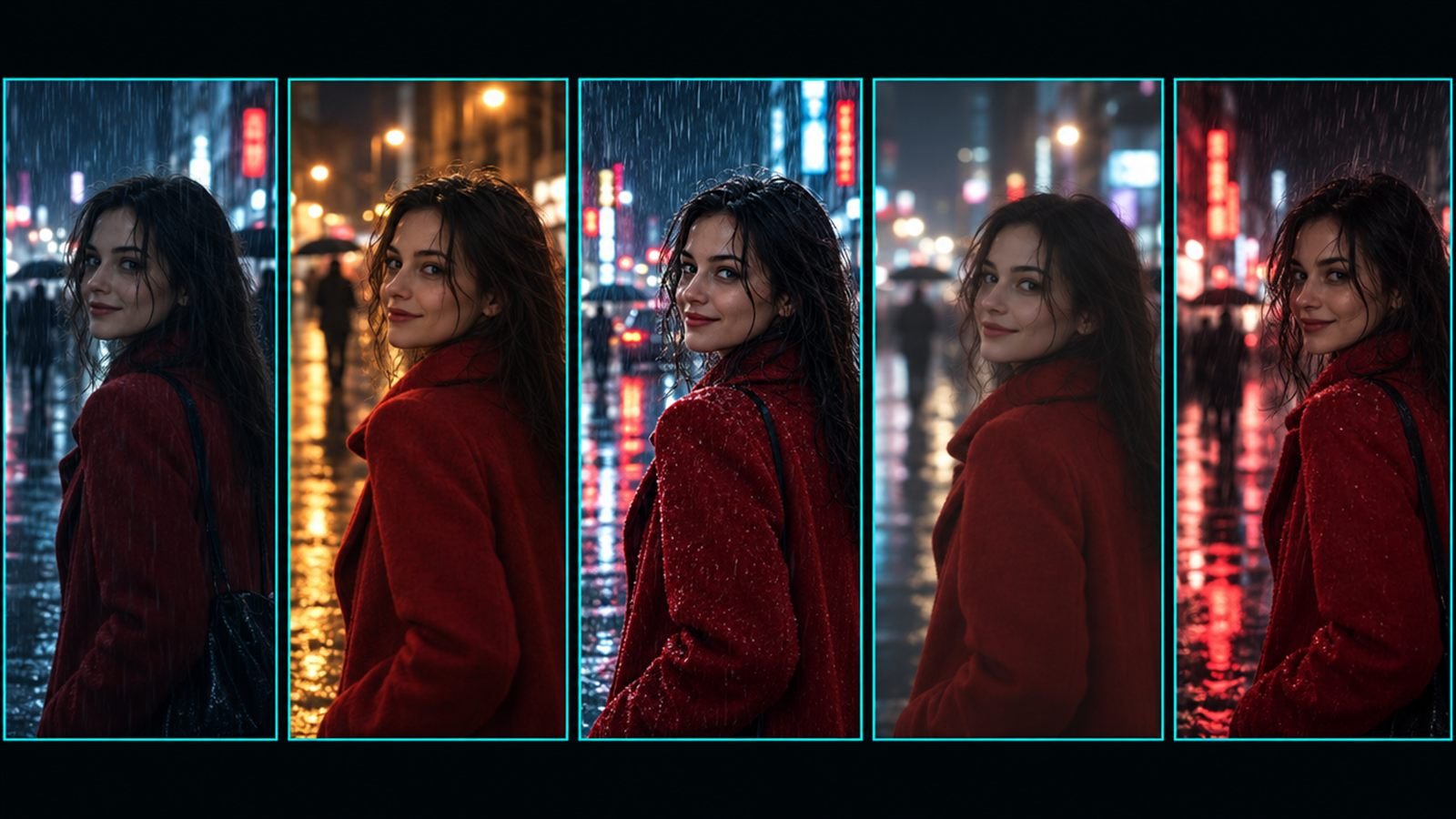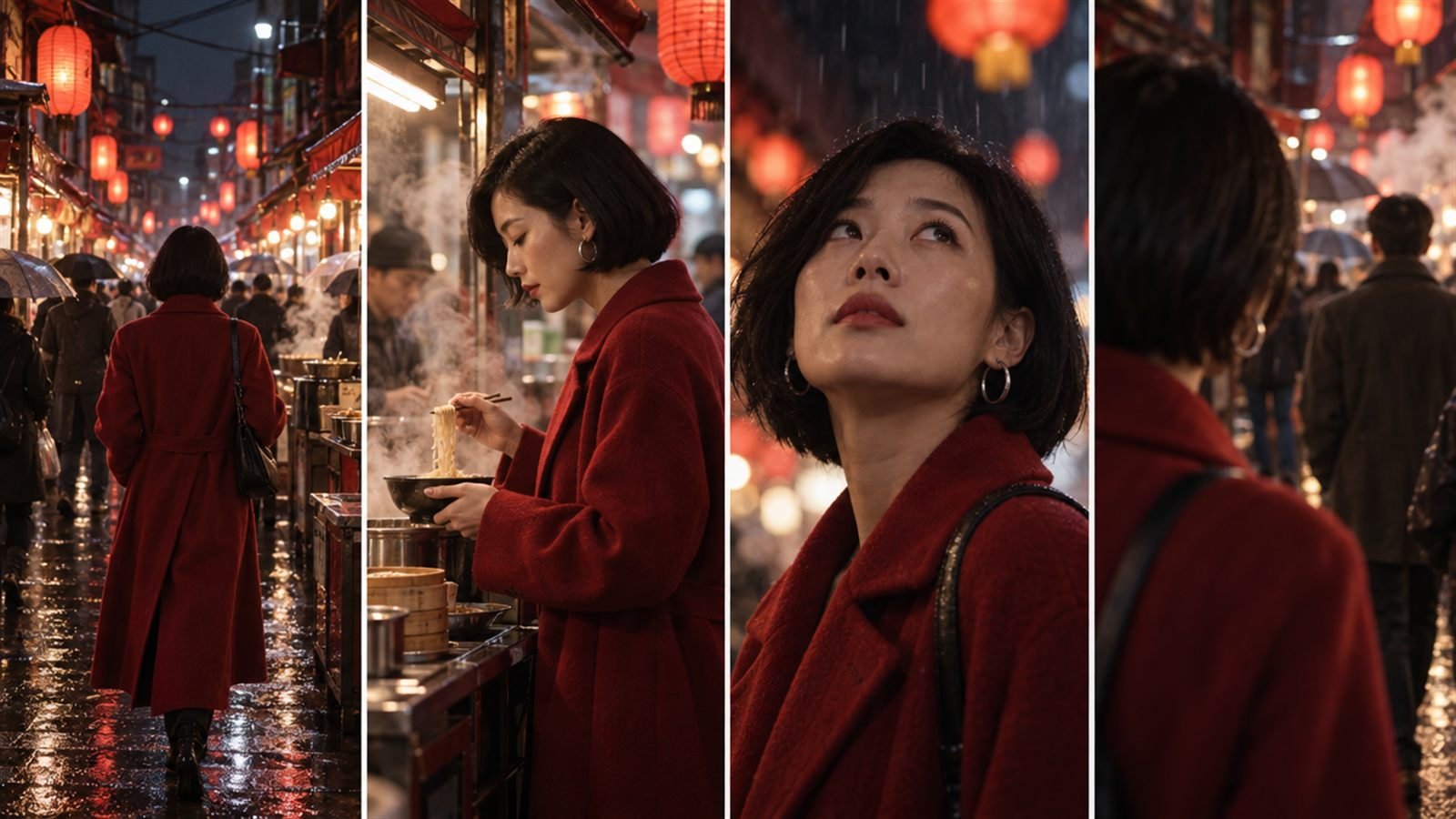
One great AI video clip is easy. Four clips of the same character is where it gets hard. The hair changes length between shots, the coat changes colour, the face becomes a cousin of the face you started with. Viewers notice immediately, and the sequence stops feeling like a story.
Consistency isn't luck. It comes from a small system: fixed reference images, identical wording, and shots that don't ask the model to reinvent the character.
Why characters drift
Each generation is independent. The model doesn't remember your last clip. Every time, it rebuilds the character from whatever you gave it: the start image and the words. If the words change even slightly (“red coat”, then “crimson jacket”), or if the start image was generated separately with slightly different features, you get a slightly different person.
Drift also happens inside a single clip, when the character turns away, gets small in the frame, or moves fast. The model loses track of details and fills them back in with guesses.
Step 1: build a character card
Write one short description of your character and never change it. Paste it identically into every image prompt and every video prompt.
Five or six visual anchors: age, hair, one signature clothing item, colours, one accessory. Specific, visible, easy to repeat. Avoid anything that changes with angle or light, like “piercing eyes”.
Step 2: make every start frame from the same source
The strongest consistency comes from images, not words. Generate one clear, well-lit reference image of your character. Then make each shot's start frame from it, using your image tool's reference, edit or character features, rather than generating each one from scratch.
Every start frame should share the character card, the same lighting style and the same film look. Once you have the frames, the video prompt only needs to describe motion. Our image to video guide explains why re-describing the picture causes drift of its own.
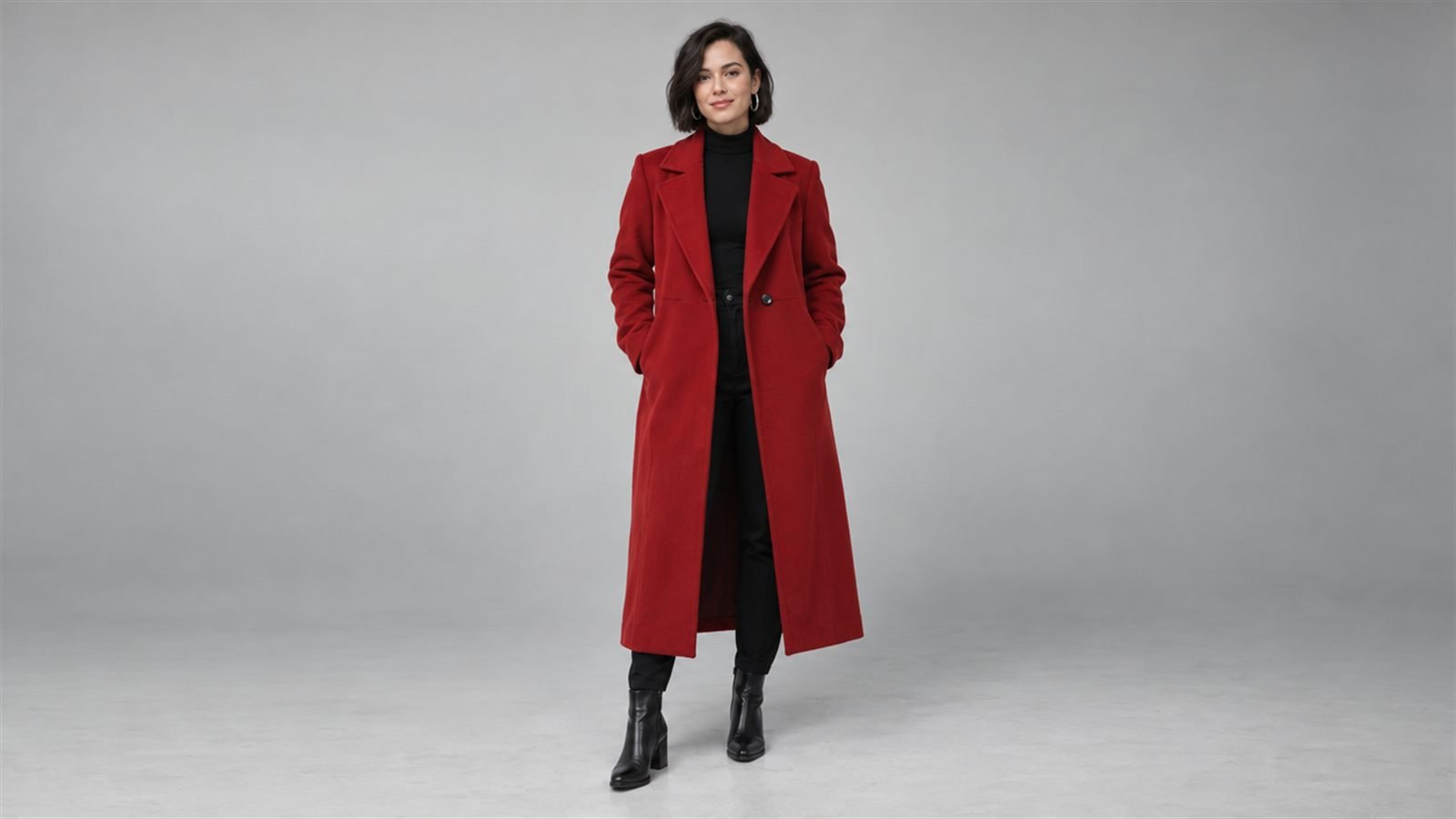
The prompt behind this image:
Step 3: a location card too
The world drifts as much as the character. Write a location card the same way.
Same wording, every shot.
Frame Juice Motion Pro's shot list keeps a locked character card and location card that are pasted identically into every shot, with an identity lock setting for each prompt.
Step 4: shots that protect identity
- Keep the face visible. Long stretches with the character facing away invite the model to rebuild the face when they turn back.
- Avoid tiny characters. A face that's twenty pixels wide in a wide shot has no details to hold on to.
- Change angles in steps. Cutting from a front close-up to a top-down wide is a lot to reconcile. Go from medium front, to three-quarter close-up, to over the shoulder.
- Slow actions. Fast spins, running and jumping blur details and invite drift.
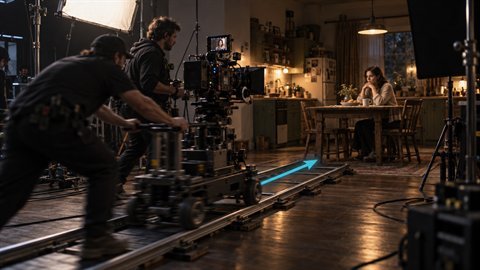
- Stable rigs. Tripod, dolly and gimbal moves keep the character readable. Chaotic handheld makes it harder.
Step 5: ask for identity to stay locked
A short line in each video prompt helps:
On platforms with a negative prompt field, add changing identity, face morphing there as well.
A four-shot example
Shot 1: wide, the woman enters the market, lanterns overhead. Slow tracking shot from behind.
Shot 2: medium, she stops at a noodle stall. Static camera, steam rising.
Shot 3: close-up, she looks up at something off-screen. Slow push-in.
Shot 4: over the shoulder, we see what she sees: a figure in the crowd. Static, rack focus to the figure.
Each shot gets the same character card, the same location card, a start frame from the same reference, and one move. Written out, shot 3 looks like this:

The prompt behind this image:
When it still drifts
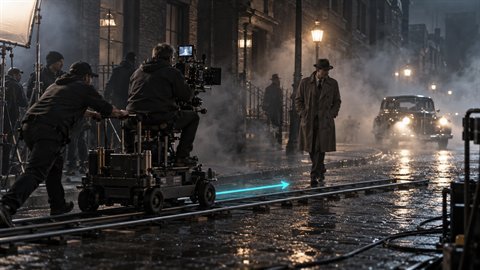
Regenerate only the drifting shot, not the whole sequence. If one angle keeps failing, change the angle. And in the edit, cuts hide small differences: a quick cut away and back is far kinder to consistency than one long continuous shot.
If you need a shot to end on a specific pose or place, give it an end frame from the same reference as well. Our start and end frame guide shows how.